As an Amazon Associate we earn from qualifying purchases.
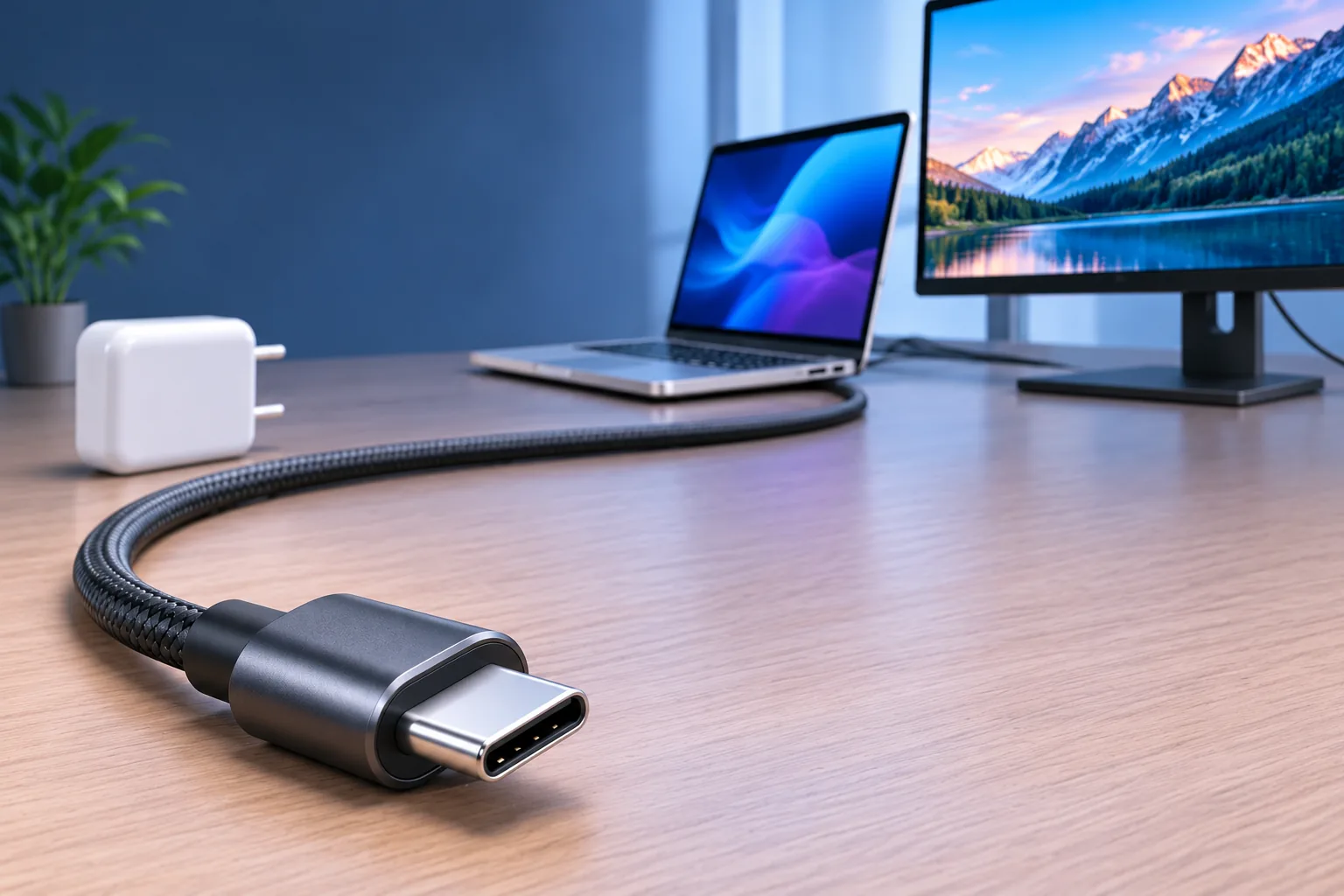
A USB-C plug tells you what connector fits; it does not tell you how quickly the cable charges, transfers files, or carries a monitor signal. To choose the right USB-C cable, start with the job, then verify power, data, and video support as separate specifications. A cable that meets one need may be unsuitable for another.
This guide covers cable capabilities. For adapter output and compatibility, see our compact USB-C charger guide. If a connection also uses a dock, our WAVLINK docking station guide covers that separate part of the chain.
On this page
Start with the task
Write down what the cable must do: charge a phone, charge a laptop, sync files, connect fast storage, or link a computer to a display. Then check the relevant rating for that task. USB-C is a connector system with cables that have different capabilities; the shape alone is not a performance specification. USB-IF's cable and connector guidance and Type-C cable logo guide distinguish cable power and data labels, while VESA explains that USB-C video depends on supported DisplayPort functionality.
A practical example: a short cable bundled with a phone may be entirely adequate for charging and occasional file sync. Reusing it for a laptop-to-monitor connection is a different requirement. Unless its specification confirms the needed data and video features, the matching plug is not enough evidence.
Check charging power
Compare the cable's supported power with the requirements of both the device and the USB-C power adapter. The adapter's advertised maximum does not establish the cable's rating, and a higher cable rating does not force a device to draw more power. USB Power Delivery coordinates power across compatible equipment; see the USB-IF overview of USB chargers and Power Delivery.
For Type-C-to-Type-C cables in the USB-IF logo program, the logo can identify a power rating. The January 2026 USB-IF guidance includes approved markings for ratings such as 60 W and 240 W. Treat these as supported ceilings for the cable category, not a promise that a particular laptop will charge at that rate. The actual result also depends on the adapter, the device's charging behavior, and the complete connection.
If the listing only says “fast charging,” look for a documented wattage or a compliant cable marking and confirm it against the product maker's specifications. Do not infer a cable rating from a charger's box, a USB-C connector, or an unverified graphic in a seller listing.
Check data speed separately
For file transfer, find an explicit data rate or USB performance tier for the cable. Power and data are independent: a high-wattage cable may not provide the data rate needed for a large external drive, while a fast data cable still needs an adequate power rating if it will charge a laptop.
USB-IF's cable logo guide lists data-rate markings for supported Type-C cables, including 5, 20, 40, and 80 Gbps tiers. These markings are not a universal guarantee that every connected device will reach the headline rate: the host port, peripheral, protocol, and other parts of the path also matter. Use the slowest required component as the practical constraint, and treat advertised maximums as capability labels rather than measured transfer results.
One detail catches buyers out: the USB 2.0 logo for a Type-C cable can show a 60 W or 240 W power rating without stating its data speed. If a listing highlights watts but says nothing about data, do not assume it is a high-speed sync or storage cable. Choose a cable with an explicit data specification when transfer performance matters.
Verify video separately
A USB-C cable carrying a monitor signal must be part of a supported video path. VESA's DisplayPort over USB-C explanation describes DisplayPort signaling through USB-C, and its DisplayPort FAQ says the source must support the relevant capability and describes a standard full-featured USB Type-C cable for this configuration. Check the exact laptop or phone model, the cable, and the monitor or dock. A USB-C port may support charging or data without offering DisplayPort Alt Mode or another compatible display path.
There is a specific cable check worth making: USB-IF says a USB 2.0 Type-C-to-Type-C cable supports USB 2.0 data and may support Power Delivery, but it does not include Alt-Mode signals. So if a cable is identified as USB 2.0 Type-C-to-Type-C, do not expect DisplayPort Alt Mode video over it. For the DP-over-USB-C setup VESA describes, look for cable documentation identifying a full-featured Type-C cable, then verify that the source and display support the mode. This is a bounded rule for this cable category and Alt Mode; other video paths require their own documented support. Neither a charging wattage nor a USB data-rate label alone proves video support.
Do not use a cable's wattage or data-rate label to predict a display resolution or refresh rate. Those claims require evidence about the host's output mode and the complete display connection, including any dock or adapter. If the manufacturer does not document the setup, the cable label alone cannot settle it.
For example, before connecting a laptop to a portable USB-C monitor, confirm that the laptop's specified port supports video output, the cable is rated for the display connection, and the monitor accepts that input. If one of those conditions is missing, try the manufacturer's documented cable or connection method instead of guessing from connector shape.
Use this decision table
| Your task | Check on the cable | Also verify |
|---|---|---|
| Charge a phone | Stated power capability | Phone and adapter charging requirements |
| Charge a laptop | Power rating sufficient for the intended setup | USB PD support and adapter/device limits |
| Sync files | Explicit data rate if speed matters | Host and accessory port capabilities |
| Use fast external storage | Stated data tier | Drive, computer port, and protocol support |
| Connect a USB-C display | Documented video capability | Host video output and display/dock input |
| Do several jobs with one cable | All three: power, data, and video | Every device and adapter in the chain |
This is an editorial selection workflow based on the separate cable, power, and video specifications in the cited standards material; it is not an official certification checklist. If you need one cable for several tasks, buy against the most demanding documented requirement and confirm each other function independently.
Common questions
Does every USB-C cable support the same charging speed?
No. USB-C describes the connector family, while supported cable power varies. Check the cable's documented rating and the adapter and device limits.
Does a 240 W USB-C cable transfer data quickly?
Not necessarily. The 240 W marking describes power capability. Check the cable's data specification separately; USB 2.0 cable logos do not state a high-speed data tier.
Can any USB-C cable connect a laptop to a monitor?
No. The source port, cable, and display or dock need compatible video support. A USB 2.0 Type-C-to-Type-C cable lacks Alt-Mode signals, so do not expect DisplayPort Alt Mode video over it. Confirm the exact host capability and cable connection method in the manufacturers' documentation.
Is the highest data-rate cable always the best choice?
Only if your equipment and task can use that capability. For basic charging or sync, a lower-tier cable may be adequate; choose based on the documented requirement rather than the biggest number.
Bottom line
When choosing a USB-C cable, check three independent questions: does its power rating fit the charging setup, does its data rate fit the transfer task, and does the documented connection support video if you need a display? A USB-C plug answers none of those by itself.
Header image: AI-generated editorial illustration, not a product photograph or test setup.