As an Amazon Associate we earn from qualifying purchases.
When a USB microphone is not working, first check whether the operating system lists it as an input device. Then select it, use a system recording or input meter to confirm sound is reaching the computer, check mute and level, and only then troubleshoot the call app. On Windows 11, use Settings > System > Sound > Input and run the microphone test. On Mac, use System Settings > Sound > Input. Microphone permission and the app’s own input dropdown are separate from choosing the system input.
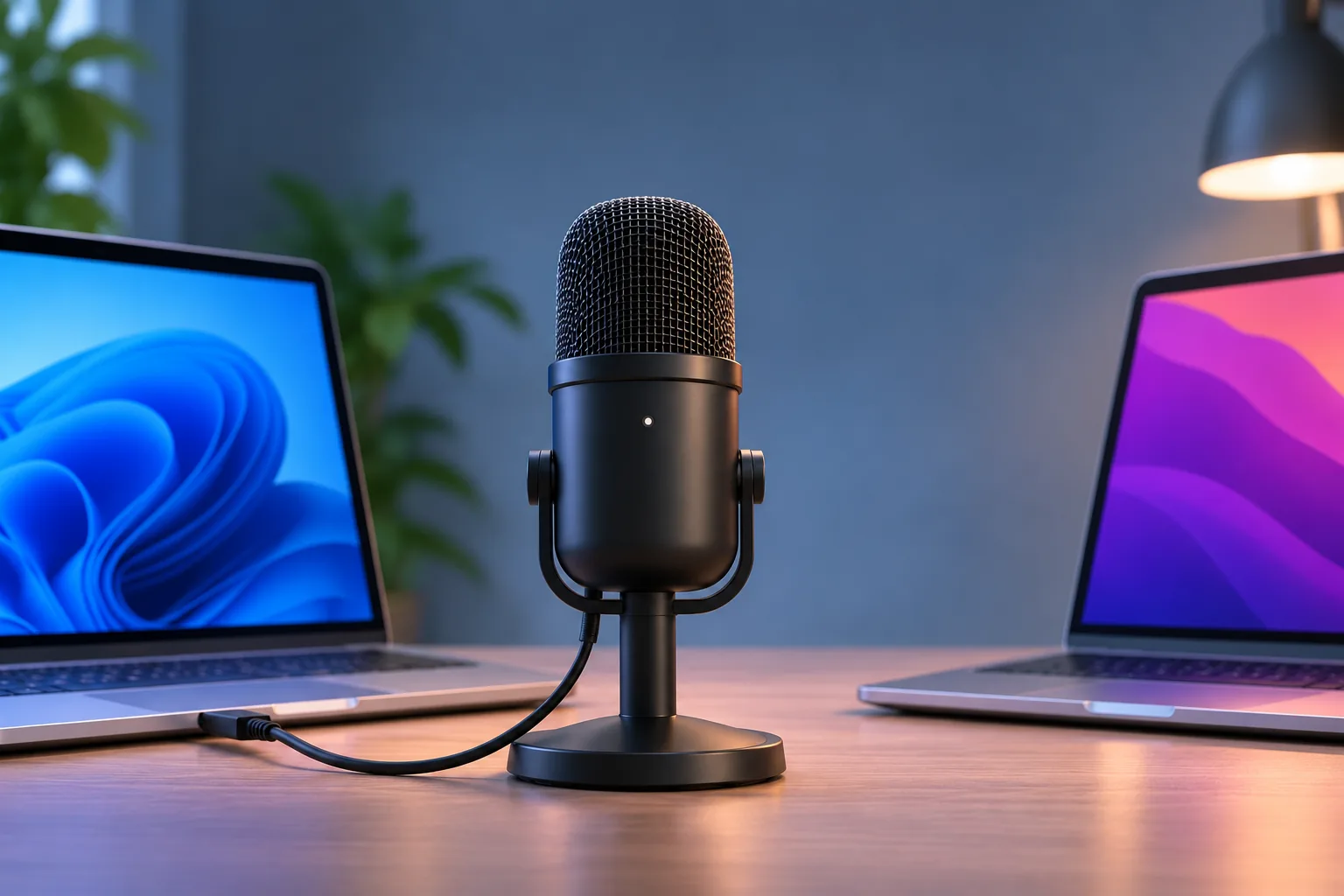
This guide is for standalone USB microphones used for calls or basic recording on Windows 11 and macOS. It covers audio input routing; it does not troubleshoot webcams or camera permissions.
Quick answer: If the mic is absent from the OS input list, check its cable, USB port and device support. If it appears, select it and confirm the system meter or test responds. If that works but one call app is silent, check that app’s microphone dropdown, mute state, and permission.
Contents
- Check whether the mic appears
- Windows 11: select and test the input
- Windows 11: check microphone access
- Mac: select the input and watch the meter
- Choose the microphone inside a call app
- Read the symptoms and isolate the fault
Check whether the mic appears
Connect the microphone directly to a USB port for the first check. Make sure the cable is fully inserted and the mic’s physical mute switch, gain knob, or power control is set correctly. If you normally use a dock or hub, bypass it temporarily to simplify the connection.
Then look for the mic in the operating system’s input list. A missing device points toward the cable, port, hub, device compatibility, or system detection. A visible device with no meter movement points instead toward mute, gain, input selection, or the microphone itself. This guide does not claim any specific USB mic was tested; these are diagnostic branches based on the platform’s separate device-selection and audio-test controls.
Windows 11: select and test the input
- Open Settings > System > Sound.
- Under Input, select the intended USB microphone. Do not assume Windows has selected it just because it is plugged in.
- Use Start test, speak in your usual call voice, then choose Stop test and Play to hear the sample. Adjust Input volume if the recording is too quiet. [S1]
- Check the microphone’s own mute switch and gain control. If Windows has a per-device input volume slider, raise it gradually while watching the test result; avoid maxing out gain if that causes distortion.
Microsoft’s test is useful because it separates “Windows detects a mic” from “the selected mic is receiving a usable signal.” If the sample is silent, reselect the device and repeat the test before opening a conference app. Microsoft’s troubleshooting guidance also recommends reviewing input volume and the selected input when the microphone is too quiet or not heard. [S2]
Windows 11: check microphone access
If the Windows test works but a specific app cannot record, open Settings > Privacy & security > Microphone. Check the main microphone access control and the app controls. Microsoft distinguishes access for Store apps from access for desktop apps; desktop programs may be governed by the desktop-app access setting rather than appearing as individual switches. [S3]
Permission answers whether an app may use the microphone. It does not choose which mic the app records from. After changing access, close and reopen the call or recording app, then select the intended USB mic in its audio settings.
Mac: select the input and watch the meter
Open System Settings > Sound > Input and select the external USB microphone. Speak into it and watch the input level meter. If available, adjust the input volume until normal speech registers clearly without peaking. Apple documents selecting a sound input and adjusting its input volume here; some USB microphones or interfaces manage gain on the hardware and may not expose the same slider. [S5]
If the meter responds but an app cannot record, open System Settings > Privacy & Security > Microphone and allow the relevant app. Apple’s external-source audio guidance specifically covers external USB microphones and recommends quitting and reopening an app after changing its access. On older macOS versions, the privacy controls may appear in System Preferences rather than System Settings. [S6]
If the mic is missing from Sound > Input, reconnect it directly, try a different port or cable, and consult the mic maker’s Mac instructions. If it is listed but the meter does not move, check hardware mute/gain and make sure the correct input is selected.
Choose the microphone inside a call app
Many call apps have their own audio-device selection. Microsoft Teams provides a documented example: open Settings > Devices (or its current audio/device settings), choose the microphone from the Microphone list, and use Make a test call to check it. The test call helps determine whether the system input that works in Windows is also the one Teams is using. Teams menu labels can change; other apps may use different menus. [S4]
Before joining a call, check that the app is not muted and that the selected input is the USB mic rather than a laptop microphone or webcam mic. If the system test records correctly but Teams is silent, change Teams’ input choice, check its permission and rerun its test call. Do not infer that Zoom, Google Meet, or another app uses the same menu path as Teams.
Read the symptoms and isolate the fault
| What you observe | Check next |
|---|---|
| USB mic is not listed in Sound/Input | Reseat the cable, try a direct port, bypass the hub, restart, and check model support. |
| Mic is listed, but the system test or meter is silent | Select it explicitly; check hardware mute, gain/input volume, and try another recording app. |
| System meter/test works, but one call app is silent | Choose the USB mic inside that app, check mute and app permission, then rerun its test. |
| Signal is audible but very quiet or distorted | Adjust input level/gain gradually and check the mic’s hardware control or manufacturer instructions. |
If the mic works in one app but not another, the problem is more consistent with app selection, permission, or mute than with a completely undetected device. That is a diagnostic inference, not a guaranteed diagnosis. If it remains absent across ports and computers, record the mic model, operating-system version, cable and any error message before contacting its manufacturer.
Sources
- S1 — Microsoft Support, Set up and test microphones in Windows
- S2 — Microsoft Support, Fix microphone problems
- S3 — Microsoft Support, Windows camera, microphone, and privacy
- S4 — Microsoft Support, Manage your device settings in Microsoft Teams
- S5 — Apple, Change the sound input settings on Mac
- S6 — Apple, If you can’t record audio from an external source on Mac
Header image: AI-generated editorial illustration, not a product photograph or test setup.