As an Amazon Associate we earn from qualifying purchases.
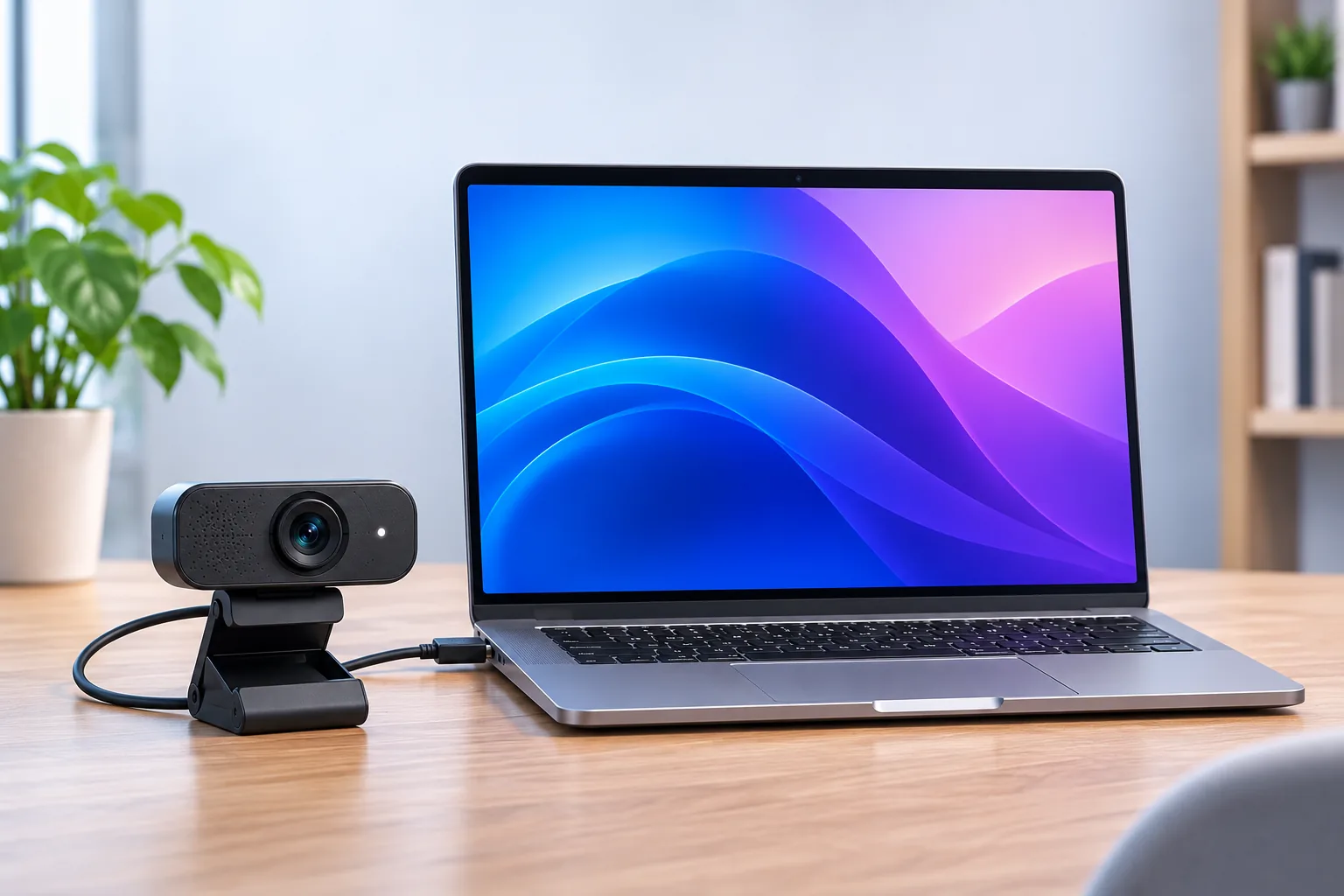
If an external webcam is missing, first find out whether the computer sees the camera at all. Connect it directly to a USB port, check any fitted privacy shutter or hardware camera switch, then open the built-in Camera app on Windows or choose the camera in FaceTime or another Mac app. If a preview works but a video call does not, focus on that app’s camera selector and OS camera permission; if the device is absent everywhere, troubleshoot the USB connection and system device list first.
This guide covers external USB cameras on Windows 11 and macOS. It is about video-device detection and camera selection; microphone input and audio levels are separate problems.
Quick answer: Check the physical shutter and cable, bypass a hub or dock for a test, then confirm the camera appears in the operating system and produces a preview. Only after that should you investigate camera permission or the video app’s own camera dropdown.
Contents
- Start with the camera and USB connection
- Windows 11: check detection and preview
- Windows 11: allow camera access
- Mac: select a camera and check access
- When a hub or USB bandwidth may matter
- A quick decision tree
Start with the camera and USB connection
- Make sure the webcam is plugged in and its cable is not loose. If it has a physical shutter or privacy cover, open it. Some laptops and webcams also have a hardware camera switch or keyboard key; check the device markings or manual.
- Disconnect the camera, wait briefly, then reconnect it to a different USB port on the computer. For diagnosis, connect directly instead of through a dock, monitor, or unpowered hub.
- Close apps that may already be using the camera, then restart the computer if the device remains stuck.
- If possible, try the webcam on another computer. This helps distinguish a computer-side setting from a camera, cable, or power issue.
Microsoft’s Windows camera troubleshooting guidance specifically lists physical shutters and switches, external-camera USB connections, and trying another port. Logitech also recommends bypassing hubs and testing another computer in its webcam-specific support steps. These checks are useful isolation steps, not proof that every hub is defective. [S1, S5]
Windows 11: check detection and preview
Search for and open the built-in Camera app. If the external camera appears as an available camera and shows a live preview, Windows has detected an image device. If the app shows another camera, use its camera-switch control to test the external one. Then open Device Manager and look for a camera or imaging device; a missing device, warning icon, or changing entry after reconnecting can help identify an enumeration or driver issue. [S1]
Many USB webcams use the USB Video Class (UVC) driver built into Windows. Microsoft says a compliant UVC device does not necessarily need a separate driver, although a manufacturer may provide additional controls or features. Start with Windows Update and the camera maker’s support page for your exact model; avoid downloading generic driver bundles from unverified sites. [S2]
If the Camera app preview works but Teams, Zoom, or another call app is blank, Windows device detection is probably not the first issue to fix. Open that app’s video settings and explicitly select the external webcam. The app can remember a different built-in camera even when Windows sees the USB camera.
Windows 11: allow camera access
Windows camera permission is separate from whether the webcam appears in Device Manager or Camera. Open Settings > Privacy & security > Camera and check that Camera access is enabled. Then check app access. Store apps have individual access controls; desktop apps use the desktop-app camera access setting. Microsoft documents these as distinct controls, so allow access for the app you intend to use rather than changing unrelated audio settings. [S3]
After changing permission, close and reopen the video app. Return to the preview test: if Windows Camera still works but one meeting app does not, check the app’s selected camera and whether it is already in use elsewhere.
Mac: select a camera and check access
Open FaceTime, Photo Booth, QuickTime Player, or the app where you need video. In apps with a camera menu, choose the external webcam explicitly. Apple’s Mac guidance lists built-in and external cameras as selectable devices; the camera menu and app behavior vary, so use the app’s own settings if it does not show a camera menu. [S6]
If the camera works in one app but not another, check System Settings > Privacy & Security > Camera and allow the affected app. Quit and reopen the app after changing access. Apple notes that camera permission is managed per app; permission does not itself choose which camera the app uses. [S7]
If no app can show the webcam, disconnect it, try another direct port, and reconnect. For a dock or display with USB ports, confirm the device actually has an upstream USB connection to the Mac; a video cable alone may not carry webcam data. Check the camera maker’s support instructions for model-specific Mac compatibility.
When a hub or USB bandwidth may matter
A hub is a useful diagnostic variable, not an automatic cause. Microsoft’s USB bandwidth documentation explains that devices sharing a USB bus compete for available bandwidth; in some configurations, bandwidth allocation can prevent a USB device from being configured. This is a technical edge case, not a claim that ordinary hubs routinely block webcams. [S4]
If the camera appears but its preview freezes or drops out, temporarily remove other high-bandwidth USB devices, bypass the hub, and test one camera on a direct port. If it never appears, first prioritize cable, port, power, device listing, and model-specific support. Video resolution and USB topology can affect streaming, but do not assume a bandwidth problem before checking basic enumeration.
A quick decision tree
- No camera entry and no preview anywhere: check shutter/switch, cable, another direct USB port, restart, then test another computer.
- Camera appears in the system but not in one app: select it inside that app and check OS camera permission.
- Preview works, then freezes or drops: temporarily bypass hubs and other busy USB devices; check the webcam maker’s requirements.
- Still absent on multiple computers: record the model, operating system version, connection path, and any error, then consult the camera manufacturer.
The key is to separate device detection, camera preview, permission, and app selection. That order avoids spending time changing permissions when the camera is not enumerating, or reinstalling drivers when only one call app has selected the wrong camera.
Sources
- S1 — Microsoft Support, Camera doesn’t work in Windows
- S2 — Microsoft Learn, USB Video Class Driver Overview
- S3 — Microsoft Support, Manage app permissions for a camera in Windows
- S4 — Microsoft Learn, USB bandwidth allocation
- S5 — Logitech Support, Webcam is not detected by my computer
- S6 — Apple, Choose an external camera on Mac
- S7 — Apple, Change Privacy & Security settings on Mac
Header image: AI-generated editorial illustration, not a product photograph or test setup.